

If you ever experience DNS resolution failure on Cisco ISE with Active Directory integration, it could lead to AD being disconnected, and every authentication against AD will be dropped (RADIUS Request Dropped).
We need to make sure that ISE can ping to the DNS server and change the configured name server to that DNS.
Here is the captured image from the DNS resolution failed alarms:
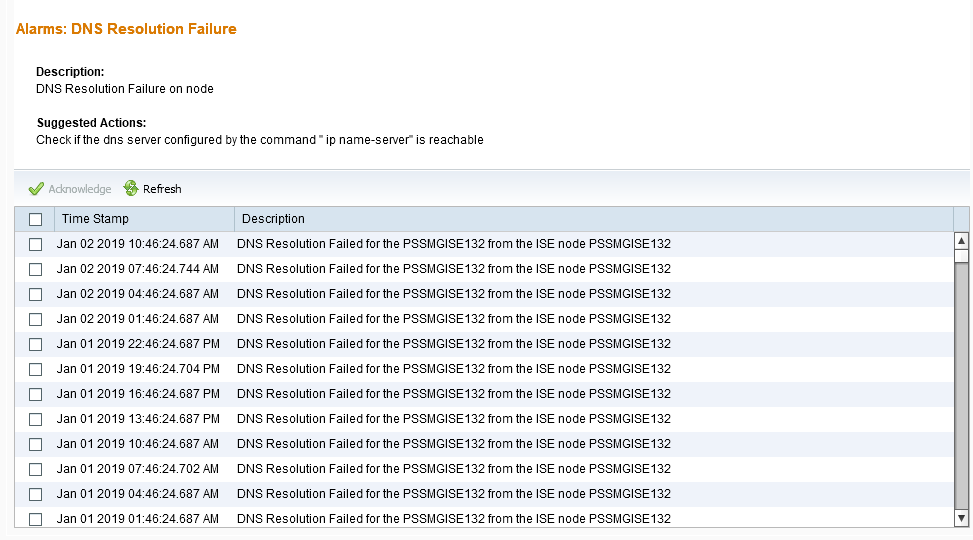
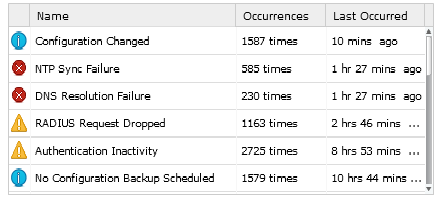
It could be a little bit tricky as we need to remove DNS 1 and (if any) DNS 2 before adding the name server to the list.
If we don’t do that first, our new name server IP address will be placed last in the list, which means ISE will query the first name server before reaching the next name servers.
We can add up to 3 DNS servers into ISE deployment. So here are the steps:
To change the name server, we need to check the name server configured on ISE with the command “show run | in name-server”
ise-packetnotes/admin# sh run | in name-server
ip name-server 10.159.35.101 8.8.8.8
Then we need to remove the name servers configured. If we just want to add the third name server, we don’t need to remove the first two name servers.
ise-packetnotes/admin(config)# no ip name-server 10.159.35.101
DNS Server was modified. If you modified this setting for AD connectivity, you must restart ISE for the change to take effect.
Do you want to restart ISE now? (yes/no) no
ise-packetnotes/admin(config)# no ip name-server 8.8.8.8
DNS Server was modified. If you modified this setting for AD connectivity, you must restart ISE for the change to take effect.
Do you want to restart ISE now? (yes/no) no
Do not restart ISE, we will restart ISE after we provide the correct name servers
ise-packetnotes/admin(config)# ip name-server 10.159.148.236 8.8.8.8
DNS Server was modified. If you modified this setting for AD connectivity, you must restart ISE for the change to take effect.
Do you want to restart ISE now? (yes/no) yes
After that, ISE will restart. Restart duration depends on the hardware resources allocated for ISE. To verify all processes are running well after restarting, we can check with the command
show application status ise
During the restart process, we can ping the server, but because ISE Application Server is not running, we cannot access the ISE GUI until it is running.
ise-packetnotes/admin# sh application status ise

ISE Database listener is running, PID: 22529
ISE Database is running, number of processes: 36
ISE Application Server is running, PID: 24757
ISE Profiler DB is running, PID: 23626
ISE M&T Session Database is running, PID: 23584
ISE M&T Log Collector is running, PID: 24840
ISE M&T Log Processor is running, PID: 24923
Make sure the name server is already changed to the correct ones.
ise-packetnotes/admin# sh run | in name-server
ip name-server 10.159.148.236 8.8.8.8
ise-packetnotes/admin# ping 10.159.148.236
PING 10.159.148.236 (10.159.148.236) 56(84) bytes of data.
64 bytes from 10.159.148.236: icmp_seq=1 ttl=127 time=0.232 ms
64 bytes from 10.159.148.236: icmp_seq=2 ttl=127 time=0.241 ms
64 bytes from 10.159.148.236: icmp_seq=3 ttl=127 time=0.244 ms
64 bytes from 10.159.148.236: icmp_seq=4 ttl=127 time=0.320 ms

--- 10.159.148.236 ping statistics ---
4 packets transmitted, 4 received, 0% packet loss, time 3001ms
rtt min/avg/max/mdev = 0.232/0.259/0.320/0.037 ms
This method should also work with other ISE versions, I have tried to version 2.x as well, as for version 3.x, I didn’t have any opportunity to test yet.
Hope this helps and is informative, thank you for reading. You may find the resources here.